Exemplo se tiver mais de 1 dispositivo
sudo brightnessctl -d intel_backlight set 25%
-
Monitores externos: brightnessctl geralmente não funciona para monitores externos por padrão. Para eles, é recomendável usar o ddcutil, que se comunica diretamente com o monitor via DDC/CI (se suportado pelo monitor).
bash
sudo apt install ddcutil # No Ubuntu/Debian
sudo ddcutil setvcp 10 50 --display 1 # Define brilho para 50% no display 1
-
Placas NVIDIA: Usuários com drivers proprietários da NVIDIA podem enfrentar dificuldades, pois o controle de brilho via sysfs pode não funcionar corretamente no Wayland. Nesses casos, ferramentas de correção de gama (gamma step), como o gammastep (para compositores baseados em wlroots) ou as configurações do ambiente de desktop (GNOME/KDE) que usam APIs de software, podem ser a única opção.
Solutions for Pop!_OS / Linux Systems
IA do google
1. Adjust Desktop Color Settings in Nvidia Control Panel (GUI Method)
For general desktop brightness (not necessarily hotkey control), you can use the Nvidia Control Panel directly:
-
Right-click on your desktop and select NVIDIA Control Panel (or “NVIDIA X Server Settings” in Linux).
-
In the navigation pane, under Display, click on Adjust desktop color settings.
-
Select the display you want to adjust.
-
Choose the Use NVIDIA settings radio button.
-
Move the Brightness slider to your desired level and click Apply.
2. Modify Xorg Configuration File (Advanced Method)
A common fix involves adding a specific option to the Xorg configuration file to enable brightness control through standard system mechanisms.
-
Open a terminal.
-
Save the current X configuration file (if one doesn’t exist) by running nvidia-settings and using the “Save to X Configuration File” option. The file is typically saved to /etc/X11/xorg.conf.
-
Edit the xorg.conf file (or create a new one in /usr/share/X11/xorg.conf.d/, for example 10-nvidia-brightness.conf) using a text editor with superuser privileges:
bash
sudo nano /etc/X11/xorg.conf
-
Locate the Section "Device" block for your Nvidia card and add the line Option "RegistryDwords" "EnableBrightnessControl=1" before EndSection.
Section "Device"
    Identifier "Device0"
    Driver "nvidia"
    VendorName "NVIDIA Corporation"
    BoardName "GeForce GTX [Your Card Model]"
    Option "RegistryDwords" "EnableBrightnessControl=1"
EndSection
-
Save the file and reboot your system. Your keyboard brightness keys or system brightness slider should now work.
3. Use Kernel Boot Parameters (Advanced/Pop!_OS Specific)
Some users on Pop!_OS have found success by editing the GRUB boot configuration.
- Edit
/etc/default/grub and modify the GRUB_CMDLINE_LINUX_DEFAULT line to include the nvidia.NVreg_RegistryDwords=EnableBrightnessControl=1 parameter.
4. Check Hybrid Graphics (Laptops)
If you are using a laptop with both integrated (Intel/AMD) and dedicated (Nvidia) graphics, the backlight control might be tied to the integrated GPU.
- You may need to ensure the correct drivers (e.g., the integrated GPU drivers) are loaded or switch the graphics mode in your system’s BIOS/UEFI settings from “Hybrid” to “Discrete” graphics to see if that resolves the control issue.
5. Update or Downgrade Drivers
Sometimes the issue is a regression in specific Nvidia driver versions. If the above steps fail, you can try:
-
Updating your Nvidia drivers to the latest version available in your system’s repositories or via GeForce Experience (on Windows).
-
If the newest driver is the problem, installing a slightly older, stable driver version might restore brightness functionality.
Valeu!
Estou tentando outras coisas aqui também
gengar@pop-os:~$

ddcutil detect

Display 1
   I2C bus:  /dev/i2c-3
   DRM connector:           card0-DP-1
   EDID synopsis:
      Mfg id:               AOC - UNK
      Model:                24G4
      Product code:         46081  (0xb401)
      Serial number:        12VP6XA001291
      Binary serial number: 1291 (0x0000050b)
      Manufacture year:     2025,  Week: 23
   VCP version:         2.2
gengar@pop-os:~$ ddcutil getvcp 10 10
VCP code 0x10 (Brightness                    ): current value =    21, max value =   100
gengar@pop-os:~$ ddcutil getvcp 10 33
VCP code 0x10 (Brightness                    ): current value =    21, max value =   100
VCP code 0x33 (Unknown feature               ): Unsupported feature code
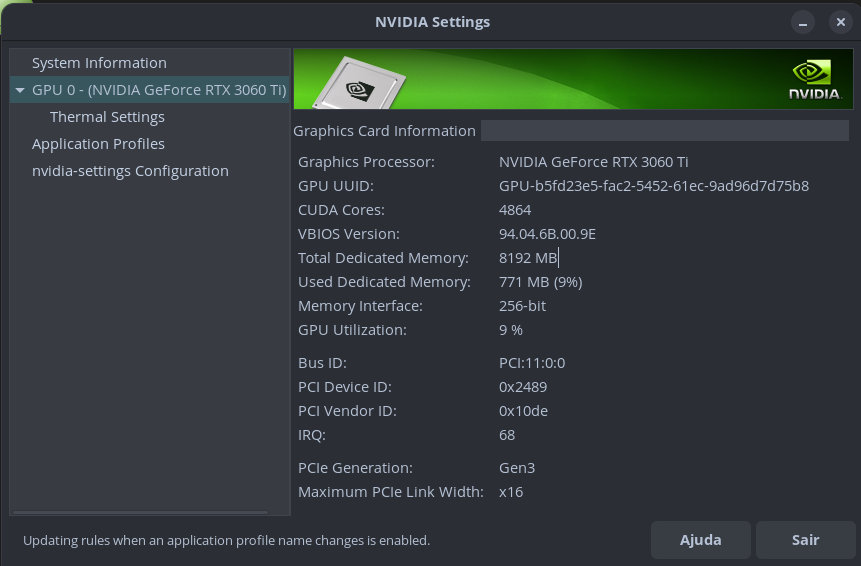
Sobre o app da nvidia, não encontrei essas opções:
Já não estou mais conseguindo pensar direito haha amanhã eu tento as outras opções.
Muito obrigado pela ajuda!
EDIT—
OOOPA!
usando $ ddcutil setvcp 10 10 eu consigo controlar o brilho! da uma leve travada, mas funciona.
Solution: Use ddcutil detect --verbose to find the valid bus and specify it (e.g., ddcutil -d 1 ...) or ignore phantom entries
1 curtida
Este tópico foi fechado automaticamente 3 dias depois da última resposta. Novas respostas não são mais permitidas.